What Is a Smart TV Box and What Does It Do?
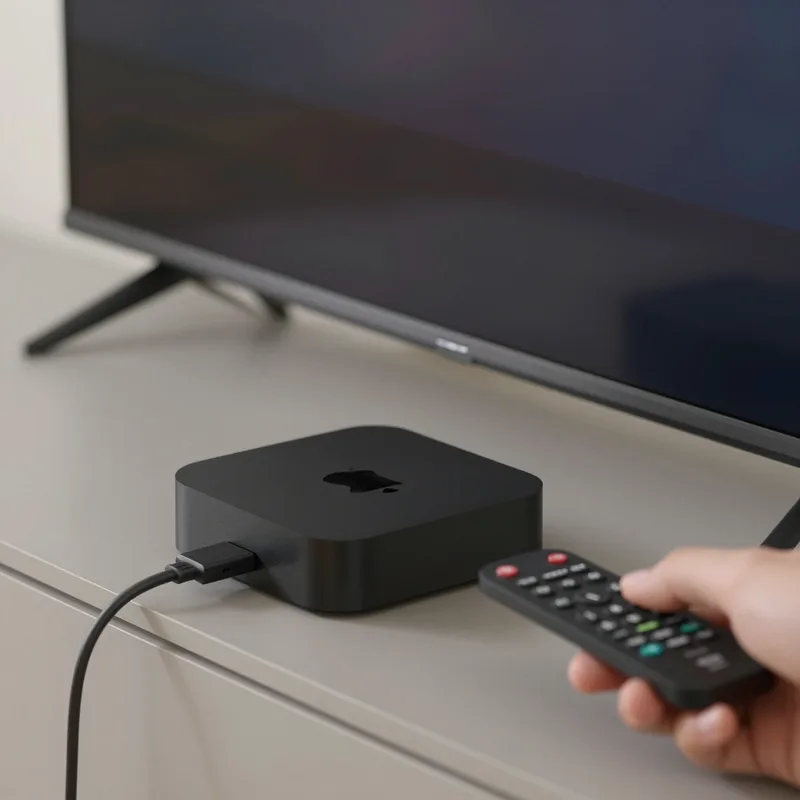
What is a smart TV box? It is a small external device that plugs into your TV's HDMI port and adds streaming apps and internet access, and once it is running you can add an IPTVCad subscription for live channels.
Think of it this way: the TV is the screen, and the box is the computer. The box does the thinking, and the TV just shows the picture. That is why an older TV with a good picture can feel new again with the right box.
A box typically adds streaming apps, internet access, voice control and media playback. An Android TV box runs Android and gives you apps from the Google Play Store. For a deeper look at the hardware, see this guide to smart TV box hardware and operating systems.
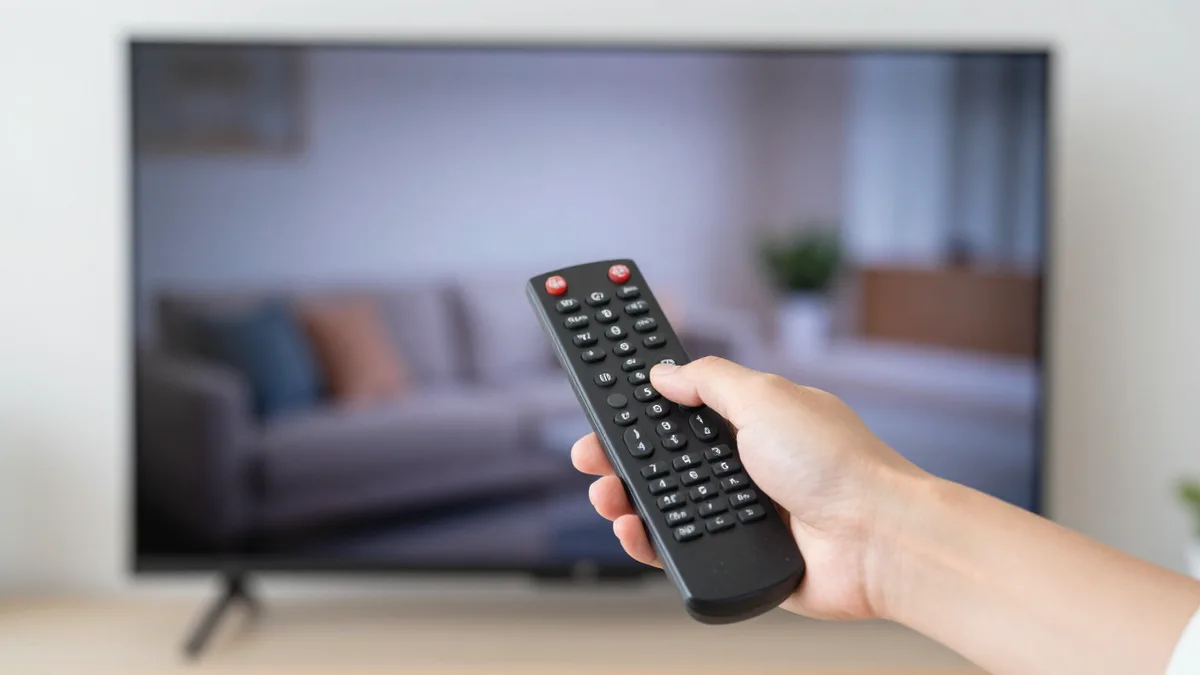
What Do I Need Before I Plug It In?
Do three quick checks before you spend a dollar.
- Find an HDMI input. Look at the back or side of your TV for a port labelled HDMI. The TV must have one to accept a box.
- Match 4K to your TV. Not all Android boxes support 4K. Some stop at 1080p or 720p. If your TV is 4K, buy a box marketed as 4K. If you plan to download content, look for H.264 and H.265 decoding support too.
- Pick memory and storage. For daily streaming, 2GB of RAM is generally enough. If you jump between apps a lot or run demanding ones, aim for 4GB or more. For storage, 16GB is a more comfortable balance of cost and usability than 8GB.
Also look for a certified platform. Google certification and DRM support usually mean better app compatibility, security updates and access to popular streaming services.
How Do I Set Up My Box, Step by Step?
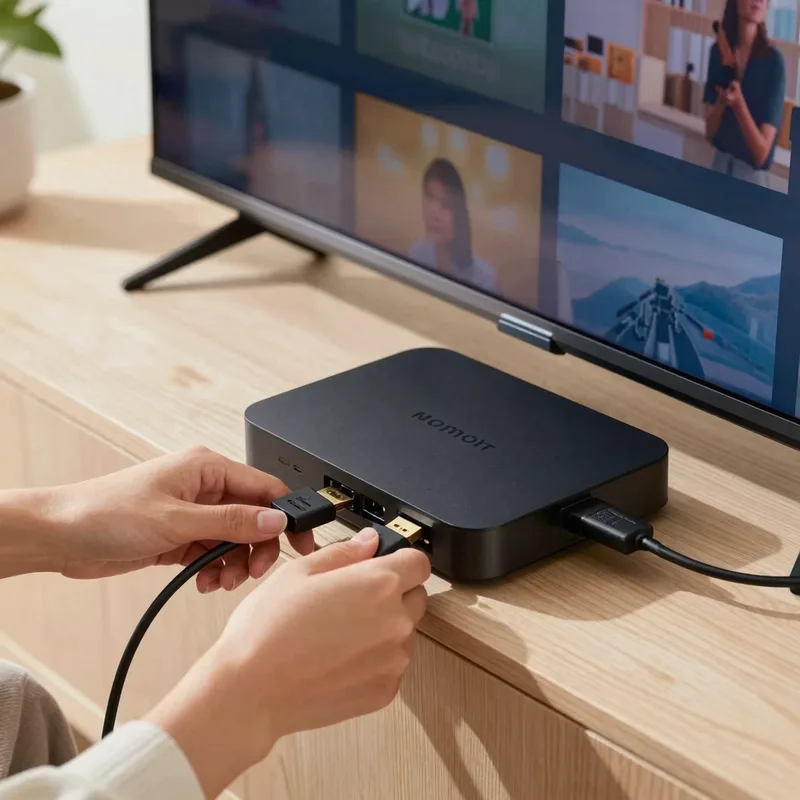
- Connect the HDMI cable and power. Push one end of the cable into the box and the other into the TV's HDMI port. Note the port number printed beside it. Then plug in the box's power adapter.
- Select the matching input. Press the input or source button on your TV remote and pick the HDMI number you used. You should see the box's start screen. A good smart TV often detects a device on HDMI by itself.
- Get online. For the steadiest connection, plug an Ethernet cable from your router into the box. Otherwise, choose your home Wi-Fi from the list on screen and type your password.
- Sign in to the box's account. Some boxes may ask you to sign in or create an account to reach the app store. Follow the prompts on screen.
- Open your first app. Pick an app from the home screen or the store, install it and start it. Menus and features can vary by region and model, so follow the wording on your own screen.
Some TVs also let the TV remote handle play and pause on a connected box. If yours does not, use the box's own remote.
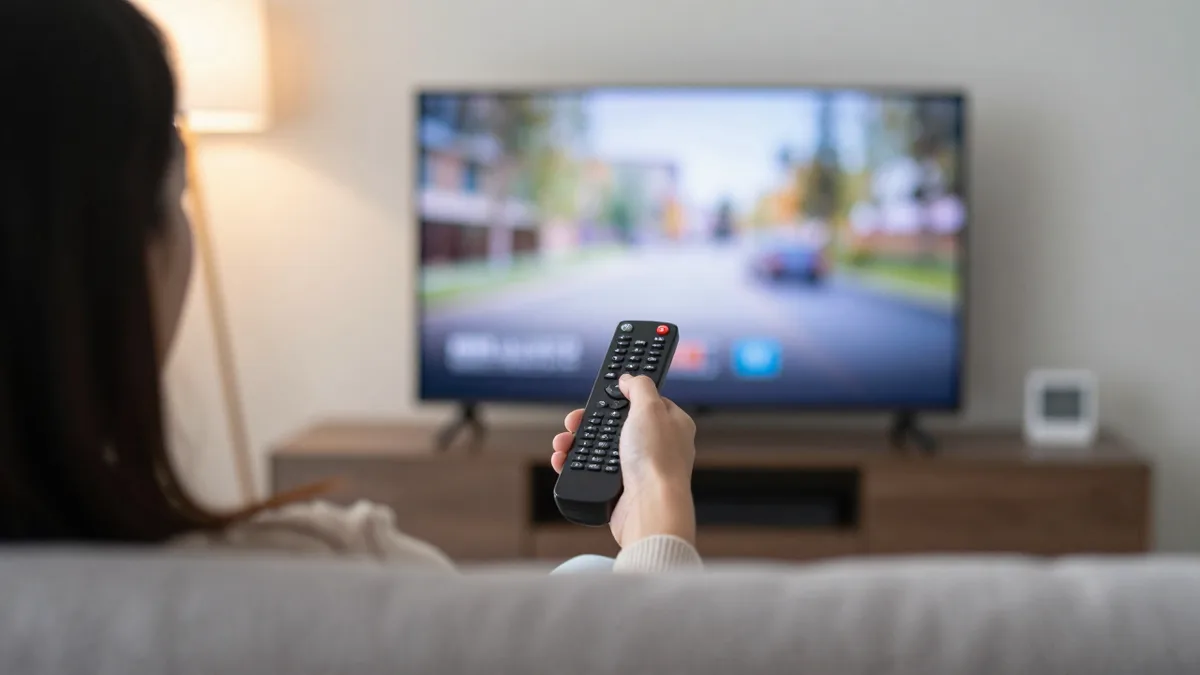
Why Does My Picture Freeze or Wi-Fi Drop?
Most freezing comes from a weak connection. Try these fixes in order.
- Use Ethernet. A cable beats Wi-Fi for steady streaming, especially during a Sportsnet or TSN game.
- Move the router closer. Walls and distance weaken Wi-Fi. A clearer path helps.
- Check the RAM. A box with too little memory struggles when many apps are open. Close apps you are not using, or step up to 4GB later.
- Check 4K match. A non-4K box on a 4K TV will not give you a 4K picture. Confirm the box is marketed as 4K.
- Fix remote and input trouble. If the remote will not respond, re-pair it following the box's instructions. If the screen is blank, cycle the TV through its HDMI inputs until the box appears.
Can I Add a Live TV Subscription Afterwards?
Yes. Once your box is working, IPTVCad is an optional subscription for live Canadian channels such as CBC, TSN and Sportsnet, plus NHL Network and other sports channels. You do not need a box to get IPTVCad, and IPTVCad does not rent boxes or send installers.
Plans start at CA$32.99 for one month. You can choose 1, 2 or 3 screens. A 2-hour free trial is available.
Stuck on a setup question? Message the team on WhatsApp any time, or write to contact@iptvcad-4k.com. You can also read IPTVCad setup and account questions answered.
Smart TV or Box: Which Should I Buy?
A smart TV is one purchase and one remote. A box costs extra but gives you control over the part that ages fastest. A TV's software is run by its maker, and many TVs stop receiving updates after a few years. A box can be replaced on its own, so you upgrade performance without replacing the TV. Samsung's Samsung Canada guide to what a smart TV does covers the built-in side.
| Feature | Built-in smart TV | Smart TV box | Android TV box |
|---|---|---|---|
| Operating system | Set by the maker: Tizen (Samsung), WebOS (LG), Google TV or Android TV (Sony) | Depends on the box and platform | Android |
| App store access | Varies by region and model | Better on certified platforms | Google Play Store |
| Who controls updates | The TV manufacturer | The box platform | The box platform |
| Replace separately | No, it is part of the TV | Yes | Yes |
| 4K support | Depends on the TV | Choose one marketed as 4K | Not all; choose one marketed as 4K |
If your TV is fairly new and its apps run well, stick with it. If it feels slow or its updates have stopped, a box is the cheaper fix. Ready to add live channels? Try the free 2-hour trial and compare IPTVCad plans and prices for one to three screens. Now you know what is a smart tv box, and which choice fits your living room.
Questions People Ask About Smart TV Boxes
What is a smart TV box used for?
Through HDMI, a box adds streaming apps, internet access, voice control and media playback to a TV. The TV stays the display while the box does the computing.
Is a smart TV box better than a smart TV?
It depends on your TV's age. A box can be replaced separately, so you can upgrade without buying a new TV, while many smart TVs stop getting updates after a few years. A newer TV that runs smoothly may not need one.
Do I need a 4K box for a 4K TV?
Yes, if you want 4K pictures. Some Android boxes only support 1080p or 720p, so pick one marketed as 4K.
How much RAM and storage does a smart TV box need?
For daily streaming, 2GB of RAM is generally enough. Choose 4GB or more if you switch apps often, and 16GB of storage is more comfortable than 8GB.
Does a smart TV box need Wi-Fi or Ethernet?
Either works, as long as the box has an internet connection. Ethernet is usually steadier, while Wi-Fi is easier if your router is far from the TV.
Stay Up to Date
Get the latest IPTV news, channel updates and streaming tips delivered straight to your inbox.