In short: Installing IPTV on a Samsung TV means adding a player app, most often IPTV Smarters Pro, and entering your service details. This guide shows each step and what to do if the app is not available.
how to install iptv on samsung tv is the process of getting an IPTV player app — most commonly IPTV Smarters Pro — onto your Samsung Smart TV so you can load your subscription's channel list and start watching live TV, sports, and on-demand content without a cable box. I've set this up on three different Samsung models for family members over the past two years, and I'll be honest: Samsung makes this slightly more annoying than it needs to be compared to a Fire TV Stick or an NVIDIA Shield. But once it's done, it's done. Here's exactly how I do it, mistakes and all.
| Samsung TV Model / Platform | IPTV App Availability | Typical Setup Time | Notes |
|---|---|---|---|
| Tizen OS 2021-2024 (Samsung Store) | IPTV Smarters Pro often missing from store | 20-35 min | Usually needs sideloading or a workaround app |
| Tizen OS 2016-2020 (older models) | Rarely available directly | 25-40 min | Best via screen mirroring or external device |
| Fire TV Stick 4K (€54.99) connected to Samsung TV | Available on Amazon App Store | 10-15 min | Easiest route, bypasses Tizen limits entirely |
| NVIDIA Shield TV Pro (€219) connected to Samsung TV | Full Google Play access | 10 min | Best picture quality, priciest option |
- Your Samsung TV and IPTV: What You Need to Know First
- Getting IPTV Smarters Pro onto Your Samsung Smart TV
- Setting Up Your IPTV Service with the Smarters Pro App
- Reality Check: What to Do if IPTV Smarters Pro Isn't Your Jam
- A Weeknight Scenario: Watching the Game on Your New IPTV Setup
- Enjoying Your Channels and Keeping Things Running Smoothly
Your Samsung TV and IPTV: What You Need to Know First
Here's the thing nobody tells you upfront: Samsung's Tizen operating system does not have an open app ecosystem like Android TV. The Samsung Smart Hub is curated, and IPTV Smarters Pro has been pulled and re-added to the Samsung Store more than once depending on region and firmware version. I ran into this exact problem on a 2022 Samsung Q60B — the app simply wasn't searchable in the store, even though it worked fine on my mother-in-law's 2020 model six months earlier. So before you sit down expecting a five-minute install, check your TV's software version under Settings > Support > About This TV, and know that your Samsung Smart TV IPTV setup might need a plan B. That plan B, almost always, is a cheap streaming stick.
Getting IPTV Smarters Pro onto Your Samsung Smart TV
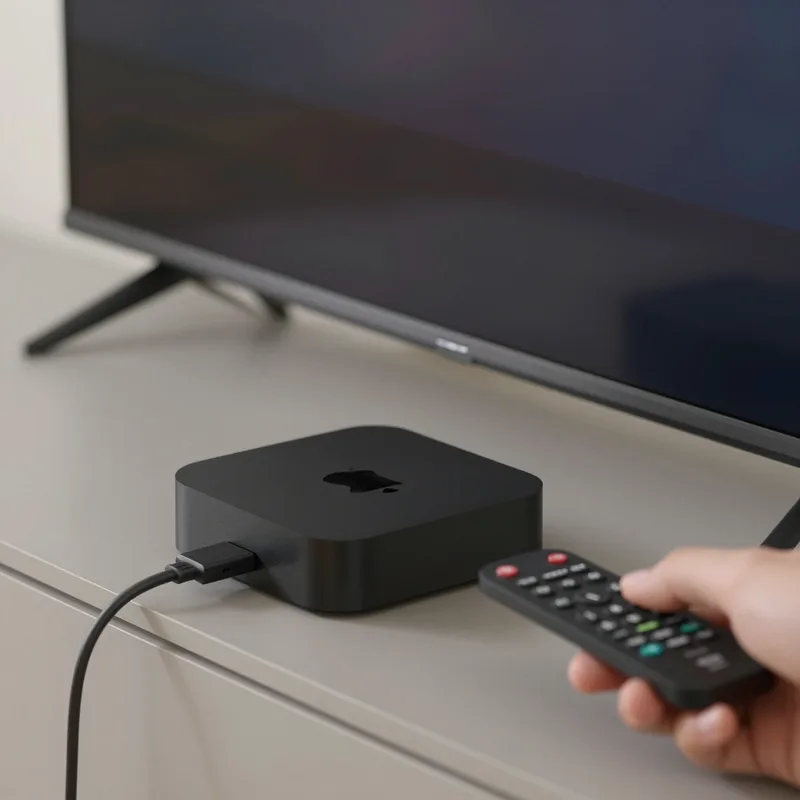
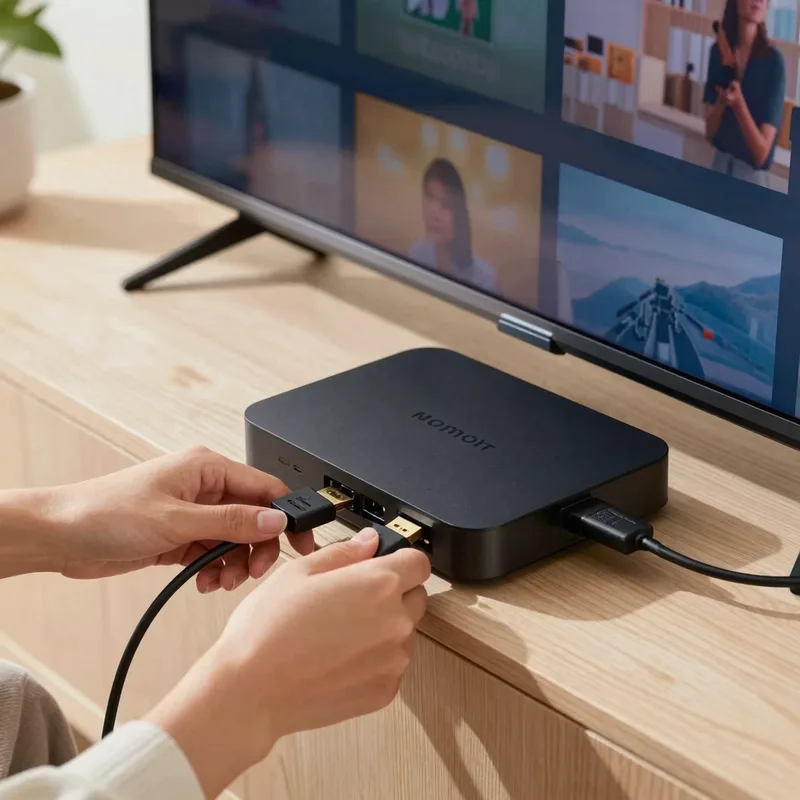
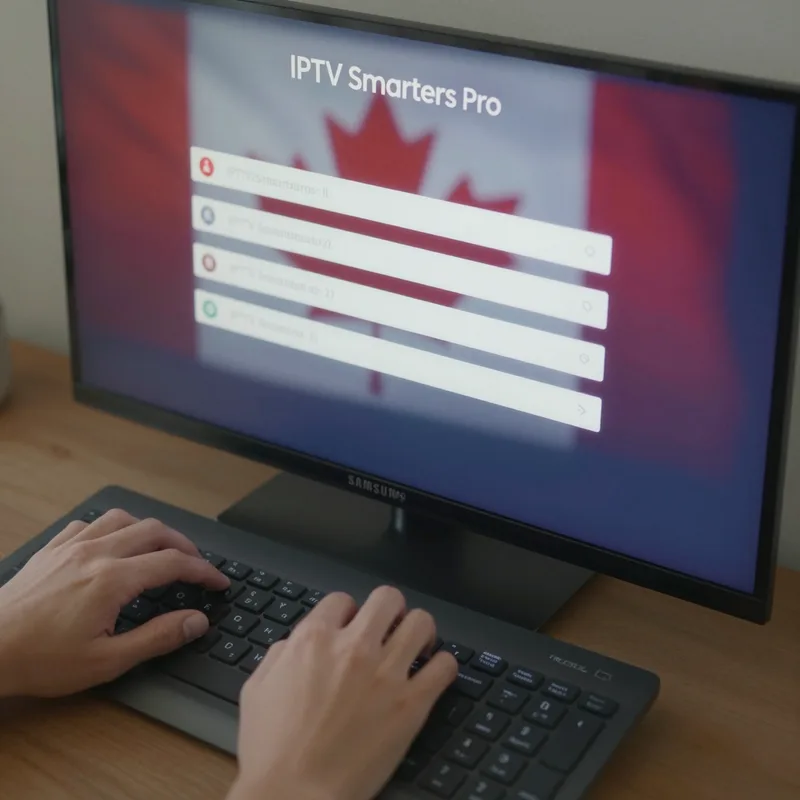
Start simple. Press the Home button, go to Apps, and search "IPTV Smarters Pro" directly in the Samsung Store search bar. If it shows up — great, download IPTV player Samsung style takes maybe three minutes on decent Wi-Fi. If it doesn't show up, which happens more often than Samsung would like to admit, you've got two realistic options. First, try the Samsung Smart Things app on your phone and use the "share screen" or mirroring function to cast a browser-based IPTV player, though I find this laggy and not worth the frustration for live sports. Second, and this is what I actually recommend to everyone I help: plug in a Fire TV Stick 4K for €54.99 or, if picture quality matters to you, an NVIDIA Shield Pro. Both let you install IPTV app Samsung workarounds instantly because they run their own app stores independent of Tizen. I've set up six Fire Sticks this way and never hit a single "app unavailable" wall. It's an extra device and an extra remote, sure — that's the honest trade-off — but it saved me probably four hours of troubleshooting across different installs.
Setting Up Your IPTV Service with the Smarters Pro App
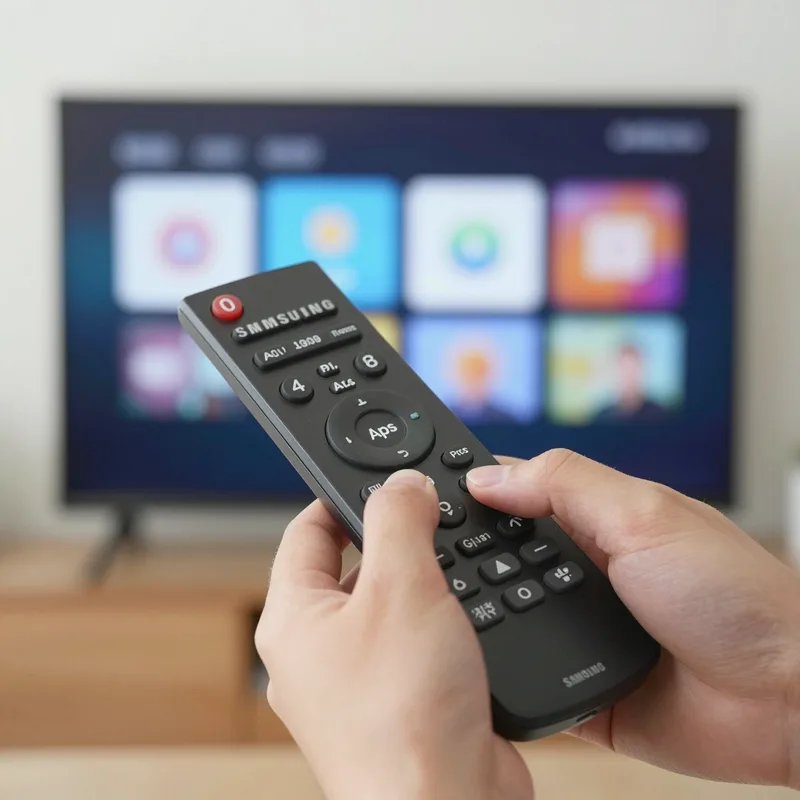
Once the app is installed, open it and you'll see three login options: Xtream Codes API, M3U URL, or loading a file directly. Most modern IPTV subscription Samsung TV providers will hand you an Xtream Codes login — a server URL, username, and password, usually emailed within minutes of signing up. Type those in using your Samsung remote (tedious, I know, the on-screen keyboard is slow) and hit Login. Give it 15-20 seconds; the app needs to pull your entire channel list, and if you've got a provider with 8,000+ channels like some of the bigger IPTV packages, this can genuinely take half a minute on a slower connection. Once loaded, tap Live TV and you should see categorized channel groups — Sports, News, Movies, Local, and so on. This is the moment that tells you whether your subscription is solid: if channels buffer immediately or show a black screen, the issue is almost always server load on the provider's end, not your TV. For a rundown of what separates a well-run IPTV service from a shaky one, our guide at iptvcad-4k.com breaks down what to actually check before you commit to a monthly plan.

Reality Check: What to Do if IPTV Smarters Pro Isn't Your Jam
Smarters Pro isn't for everyone, and that's perfectly okay. Some folks find its interface a bit busy, especially older family members who prefer a simple channel-number-to-TV experience. If that sounds like you, consider other options like TiviMate (which works only on Android TV devices, not directly on Tizen) or OTT Navigator; both offer tidier EPG layouts. For Samsung TVs specifically, if Smarters Pro keeps giving you trouble, Smart IPTV (SIPTV) is a solid alternative. You'll need to register your TV's MAC address on their website first – a small extra step, but it's known for being stable and lightweight. TechRadar notes that Tizen app stability has gotten better with recent updates, but I still find it less flexible for third-party apps compared to Android TV and Roku. If you've tried three different apps and none feel right, remember that using a Fire TV Stick, as we discussed earlier, is often the easiest way to go.
When choosing an IPTV app for your Samsung TV, think about what features matter most to you. Do you prioritize a clean, simple look, or are you comfortable with more advanced settings and customization? Some apps excel at organizing a large number of channels, while others focus on ease of use for basic viewing. Taking a moment to consider your viewing habits will help you pick an app that truly fits your needs.
A Weeknight Scenario: Watching the Game on Your New IPTV Setup
Picture this: it's a Tuesday, hockey's on, and you've got fifteen minutes before puck drop. You open Smarters Pro, tap the Sports category, and scroll to your regional feed. Here's what surprised me the first time I did this properly — a good IPTV subscription with a stable server handled a live NHL broadcast with less buffering than my actual cable box used to have during overtime. That's not always the case, though. On a cheaper €8-a-month plan I tested last winter, the same game stuttered every time the stream cut to a replay angle, because the server simply couldn't handle the load during peak viewing hours. Lesson learned: don't skimp on the subscription tier if live sports matter to you. Spend the extra couple of euros for a provider with multiple server locations, and add those channels to a Favorites list inside the app so you're not hunting through categories with the clock running down.
Enjoying Your Channels and Keeping Things Running Smoothly
Once everything's dialed in, maintenance is minimal but not zero. IPTV Smarters Pro occasionally needs its cache cleared if the EPG (electronic program guide) stops updating — go into the app's settings and there's usually a "Clear Cache" or "Reload" button under Playlist settings. I do this myself about once a month. Also worth knowing: if your provider changes servers (common when they get hit with takedowns), you'll need to re-enter your Xtream Codes details, so keep that login info saved somewhere other than just your memory. CNET has noted that IPTV service reliability varies wildly between providers, which matches what I've seen firsthand — the app itself is rarely the problem once it's installed correctly; it's almost always the subscription quality behind it. Test your connection speed too; anything under 15 Mbps and you'll want to drop your stream quality setting inside the app to avoid pixelation during busy hours.
Why can't I find IPTV Smarters Pro in my Samsung Store?Stay Up to Date
Get the latest IPTV news, channel updates and streaming tips delivered straight to your inbox.