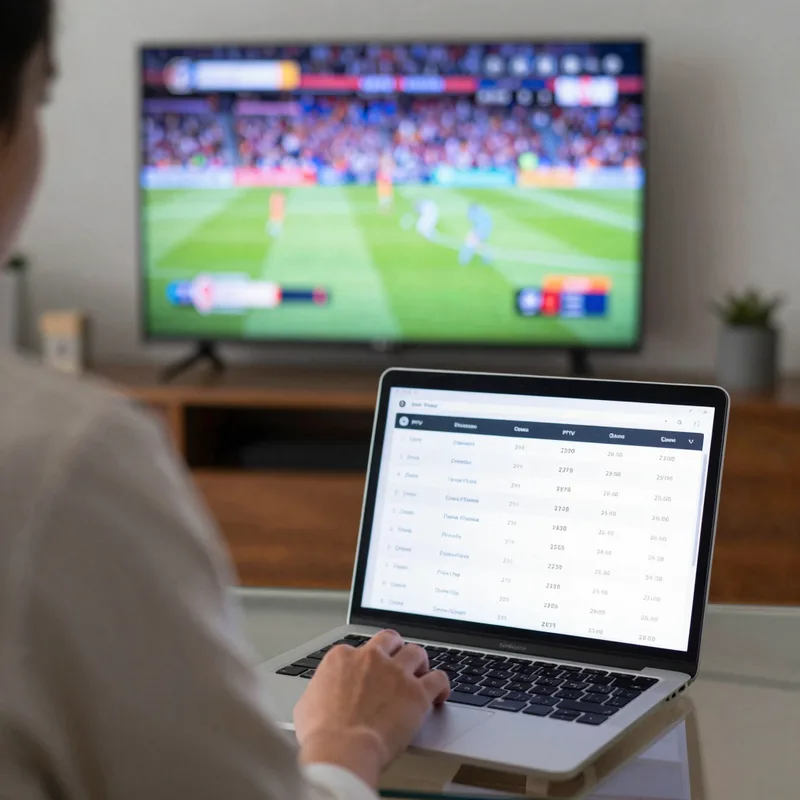
How can I get IPTV? Buy an IPTV subscription from IPTVCad, then enter the username, password and server URL it sends you into an IPTV player app on your TV, Fire TV Stick, Android box or phone. That is the whole job. The rest of this guide covers the exact login entry on each device, what to do when channels stay blank, and how to check your internet before you pay.
How can I get IPTV on my TV?
Think of it as two separate pieces. The subscription is what brings you the channels. The player app is just the window you watch them through. IPTVCad sells one all-in-one plan with up to 3 screens at once, and its 4K lineup includes Canadian networks such as CBC, CTV, Global, TSN and Sportsnet, so you can catch NHL and CFL games without a cable box.
Setup comes down to three steps:
- Get your subscription and keep the login details IPTVCad sends you.
- Install an IPTV player app on your device.
- Enter the login details in the app and wait for the channels to load.
On Android TV or Google TV, open the Google Play Store, search for an IPTV player, and pick the Xtream Codes API login option when the app offers it. Most IPTV apps need a username, password and server URL. Other devices ask for something different, so check the table first.
| Device | What it asks for | Good to know |
|---|---|---|
| Fire TV Stick | Username, password, server URL | Install Downloader first, then the player app |
| Android TV / Google TV | Username, password, server URL | Choose the Xtream Codes API option if shown |
| Smart TV | Username, password, server URL, or a MAC address for activation | If the app shows a MAC address, photograph it and send it to support |
| Phone or tablet | Username, password, server URL | Same login as the TV apps |
| MAG box | MAC address and portal URL | MAC is under Settings → System Settings → Device Info; portal goes under Servers → Portals |
| Roku | Depends on the app | Setup depends on which IPTV apps are available in your region and on your Roku model |
TiviMate alternatives
You are not locked into one player. When you search for TiviMate alternatives, ask which login the app wants. If it accepts a username, password and server URL (or the Xtream Codes API option), it fits your IPTVCad details. Pick one available for your device and stay with it.
TiviMate vs MyTVOnline
Comparing TiviMate vs MyTVOnline? Skip the feature lists at first. Check the login type, check that the app runs on your device, and check that you can type your details in cleanly. Those three points decide whether setup takes five minutes or an evening.

How to get TiviMate on Firestick
By default, a Fire TV Stick blocks apps from outside its store, so expect a short detour:
- From the Amazon App Store, install Downloader.
- Go to Settings → My Fire TV → Developer Options → Install Unknown Apps and allow Downloader.
- Open Downloader and use it to install your IPTV player app, TiviMate included if that is the one you chose.
- Open the player and choose the login option that takes a username, password and server URL.
- Type in the details IPTVCad sent you, exactly as received.
That "exactly as received" part matters. A single wrong letter, a missed capital or a stray space stops the login cold. Copy the details from your message if you can, rather than retyping them from memory.
After you save the login, give it a few minutes. Live TV, Movies, Series and the TV guide (EPG) load in stages, so a half-empty screen in the first minute is normal.
IPTV subscription for TiviMate
Without a subscription, the app has no channels. IPTVCad's login is what you type in, and its plan covers 35,000+ live channels and 110,000+ movies and series in 4K Ultra HD, plus the Canadian networks you already know.
TiviMate premium lifetime subscription
Any premium or lifetime upgrade inside a player app buys the app itself. It is separate from your IPTV subscription and adds no channels. Think of it as paying for the remote, not the shows. Start with the basics and decide on upgrades later.
TiviMate Windows 11
Windows 11 works the same way as a TV, just with a mouse. Make sure the player you choose lists Windows 11 support before you install it. Then:
- Install the player and open it.
- Pick the login option that uses a username, password and server URL.
- Enter all three exactly as received.
- Save, then wait for channels and the guide to load.
Try your login on a laptop before you set up the big screen. If it works there, your details are fine.
Why are my channels not loading?
The login goes through but the channel list is empty, or the guide is blank. Work down this list in order:
- Check your internet. Open a website or video on another device on the same Wi-Fi.
- Restart the app. Close it fully, then reopen it.
- Retype the login. Compare the username, password and server URL character by character.
- Wait a few minutes. Live TV, Movies, Series and the EPG can take a while on first load.
- Check your speed. You need at least 50Mbps to stream high-quality television. A slow connection can leave you with stalls or blank screens, especially in HD or 4K.
Run a speed test on a phone or laptop standing near the TV. Wi-Fi at the far end of the house is often much slower than the number your provider quotes. Test while others are streaming or gaming too, because that is when you will be watching the game.
TiviMate user agent
Some players have a user agent field in their settings. Leave it on the default unless support asks you to change it. If the steps above change nothing, message the team on WhatsApp and tell them which device and app you use. They can look at it with you.
Ready to test IPTV at home?
Do not commit to a full year on a guess. First run the speed test and see whether you reach 50Mbps where the TV sits. Then start the 2-hour IPTV trial, install your player, enter the login and flip through CBC, TSN and Sportsnet in 4K. Look for the channels you care about most, whether that is a Leafs game, CFL Sunday or local news on CTV.
If a channel is missing, message IPTVCad on WhatsApp at +447366982964. The team answers 24/7, weekends included. For billing or longer questions, write to contact@iptvcad-4k.com and expect a reply the same day. There is no phone line, so you get everything in writing.
So, how can I get IPTV working at home? Check your speed, test with the trial, then compare IPTVCad plans from $32.99 and pick the one that fits your household.
Quick answers about getting IPTV
How can I get IPTV on my TV?
Get an IPTV subscription, install a player app on your TV or a Fire TV Stick, then enter your username, password and server URL. Wait a few minutes for the channels and guide to load. On a MAG box you use a MAC address and portal URL instead.
Can I install IPTV on a Smart TV?
Often yes, if an IPTV player app is available for your TV. Some Smart TV apps show a MAC address. If activation is required, take a photo of it and send it to support.
What login details do I need for IPTV setup?
Most apps need a username, password and server URL. MAG boxes need a MAC address and portal URL. Type everything exactly as received, because small typing errors stop the login from working.
Why are my IPTV channels not loading?
Check your internet connection, restart the app and confirm the login details are typed correctly. Then wait a few minutes, since Live TV, Movies, Series and the guide load in stages. If it still stays blank, message support on WhatsApp.
Is a TiviMate premium lifetime subscription the same as an IPTV subscription?
No. A premium or lifetime upgrade belongs to the player app. An IPTV subscription is what supplies the channels, and you need it to have anything to watch.
How much internet speed do I need for IPTV in Canada?
You will need at least 50Mbps to stream high-quality television. Test your speed on a device close to the TV, ideally when others at home are online too.
Stay Up to Date
Get the latest IPTV news, channel updates and streaming tips delivered straight to your inbox.