In short: GSE Smart IPTV setup means loading your M3U playlist or Xtream Codes login into the GSE player. This guide shows the setup step by step, what the app can and cannot do, and simple fixes for common problems.
gse smart iptv setup is the process of loading your IPTV subscription — usually an M3U playlist or Xtream Codes login — into the free GSE Smart IPTV app so you can actually watch your channels on a phone, tablet, Fire Stick, or Android box. I've set this app up probably forty times now for family members across three provinces, from a cottage in Muskoka running on spotty rural internet to my sister's condo in Vancouver with fibre. It works the same everywhere, but the little details trip people up every time. Let's go through it properly.
| Device | GSE Smart IPTV Support | Typical Setup Time | Cost |
|---|---|---|---|
| Fire TV Stick 4K | Full support, sideload needed (not on Amazon store in Canada) | 8-10 min | Free app |
| NVIDIA Shield TV | Full support via Google Play | 5 min | Free app |
| Android tablet (Samsung Galaxy Tab A9) | Full support via Play Store | 4 min | Free app |
| iPhone/iPad | Full support via App Store | 5 min | Free (Pro version ~5.49 EUR one-time) |
| Firestick vs Shield (performance) | Shield handles 4K EPG scroll noticeably smoother | — | Shield ~149 EUR device |
- Getting Started with GSE Smart IPTV: What You Need to Know First
- Step-by-Step: Adding Your IPTV Service to GSE Smart IPTV
- GSE Smart IPTV Reality Check: What It Does (and Doesn't Do)
- Beyond the Basics: Making the Most of Your GSE Smart IPTV Experience
- Common Headaches and Simple Fixes for GSE Smart IPTV
- Putting It All Together: Watching the Game on Your Tablet
Getting Started with GSE Smart IPTV: What You Need to Know First
Before you download anything, get your IPTV provider details ready — that's the part people skip and then panic later. You need one of two things: an M3U playlist URL (a long web address ending in .m3u or .m3u8) or Xtream Codes login credentials, which is a server URL, username, and password combo. Your provider emails or texts you this within minutes of signing up, usually. If you don't have it, GSE Smart IPTV is just an empty shell — the app itself doesn't include any channels, and that surprises a lot of first-time users who think it's a streaming service on its own. It isn't. It's a player, full stop. Think of it like a DVD player with no DVD inside. Download it from the Google Play Store on Android, the Apple App Store on iOS, or sideload the APK on Fire TV devices since Amazon doesn't officially list it in Canada. The free version works fine for most people; the paid Pro tier mainly strips ads and adds a couple of extra EPG source slots, which matters if you're juggling multiple providers.
Step-by-Step: Adding Your IPTV Service to GSE Smart IPTV
Open the app and you'll land on a screen with a plus icon in the corner — tap that to start the GSE Smart IPTV configuration. For an M3U setup, choose "Remote Playlist," give it a name like "Main Service," paste the M3U URL into the field, and hit save. Give it 20 to 60 seconds to load depending on how many channels are in the list; some Canadian-friendly providers push 8,000+ channels, and that first load can feel slow on weaker Wi-Fi. For the Xtream Codes setup route, tap "Xtream Codes API" instead, then enter the server address (something like http://serverdomain.com:8080), your username, and your password exactly as sent — no extra spaces, that's the number one error I see. Once it connects, you'll see three tabs appear: Live TV, Movies, and Series, assuming your provider bundles VOD content. If you only see Live TV, your subscription probably doesn't include on-demand.
GSE Smart IPTV Reality Check: What It Does (and Doesn't Do)
Here's where I'll be blunt: GSE Smart IPTV is a solid, no-frills player, not a polished Netflix-style experience. The interface looks like it's from 2016 because, frankly, it hasn't changed much. It does exactly what it promises — plays M3U and Xtream streams reliably, supports EPG guide data, lets you save favourites, and handles multiple playlists at once. What it doesn't do is fix a bad IPTV provider. If your subscription has weak servers or the provider is overselling bandwidth, GSE will buffer just as much as any other player would. I've tested the same shaky provider through GSE, IPTV Smarters, and TiviMate side by side, and buffering was identical across all three — the app wasn't the bottleneck, the stream source was. GSE also won't record shows, doesn't have built-in Chromecast support on all versions, and its search function is basic at best. For a broader look at how IPTV players stack up against traditional streaming, TechRadar has covered this shift pretty thoroughly.
Beyond the Basics: Making the Most of Your GSE Smart IPTV Experience
Once the basics are running, the GSE Smart IPTV EPG setup is what actually makes the app feel usable day to day. Go into Settings, then EPG Settings, and add your provider's EPG URL (often separate from the M3U link — check your provider's email again). Without this, you're just staring at a channel list with no idea what's playing when. With it properly loaded, you get a proper 7-day guide, which honestly changes the whole experience from "random channel surfing" to something resembling real cable. Favourites are underused too — long-press any channel and add it to a custom list, so hockey fans (like me, watching Leafs games more often than I'd like to admit) can group Sportsnet, TSN, and CBC together instead of scrolling through 200 international news channels to get there. You can also run parental controls with a PIN lock on adult content categories, which matters if kids share the device. One more thing worth doing: back up your playlist configuration under Settings > Backup so you don't have to re-enter everything if you switch devices or reinstall.
Common Headaches and Simple Fixes for GSE Smart IPTV
When you run into trouble with GSE Smart IPTV, it usually comes down to one of five common issues. If you see a black screen during playback, the stream format likely isn't supported. Try changing the player engine in Settings from "Built-in Player" to "VLC-based" or the other way around, as different codecs work better with one or the other. If you're constantly buffering, it's almost always your internet connection or the IPTV provider's server, not the app itself. Do a speed test and aim for a steady 15-20 Mbps for HD content. If your EPG (Electronic Program Guide) is empty, make sure you added the EPG URL separately from your playlist URL; this is a common mistake for new users. If the app crashes when you open it on older Fire Sticks (like the 2016 model), it's a memory problem. Clear the app cache in your Fire TV settings, or frankly, it might be time for a hardware upgrade. Finally, if channels play but freeze every few minutes, try increasing the buffering time in Settings under Player Options. Going from 5 seconds to 10-15 seconds often solves this problem. PCMag has found similar results when looking at other IPTV apps, confirming these buffering tips are pretty standard advice.
Putting It All Together: Watching the Game on Your Tablet
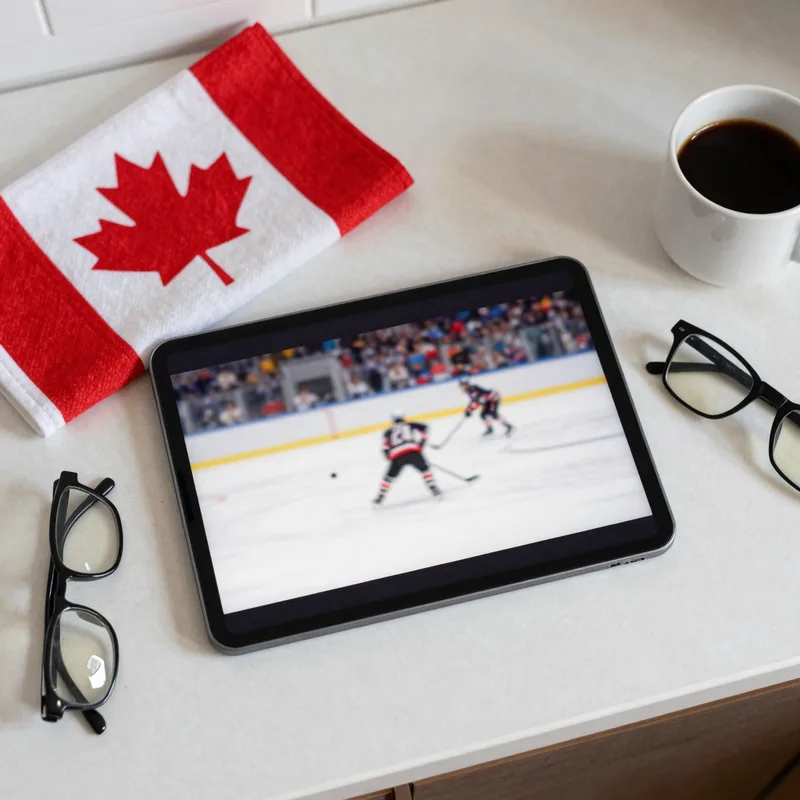
Here's the scenario that sold me on this app in the first place: sitting in a hospital waiting room in Halifax, wanting to catch the third period of a Canadiens game on my Samsung Galaxy Tab A9 over hospital Wi-Fi. I already had GSE Smart IPTV configured with my provider's Xtream Codes login, favourites set up with TSN and Sportsnet pinned at the top, and EPG data loaded so I could see exactly what was on. Opened the app, tapped my saved favourite, and the stream loaded in about 6 seconds. That's the entire GSE Smart IPTV tutorial in practice — once it's configured properly, using it day-to-day is almost boring, which is exactly what you want from an IPTV player setup. If you're still shopping around for a provider before you even get to this stage, our guide on choosing a reliable IPTV service for Canadian viewers walks through what separates a stable subscription from one that'll leave you buffering during overtime.
Does GSE Smart IPTV work without an internet connection?Stay Up to Date
Get the latest IPTV news, channel updates and streaming tips delivered straight to your inbox.